How to navigate Neovim without arrow keys
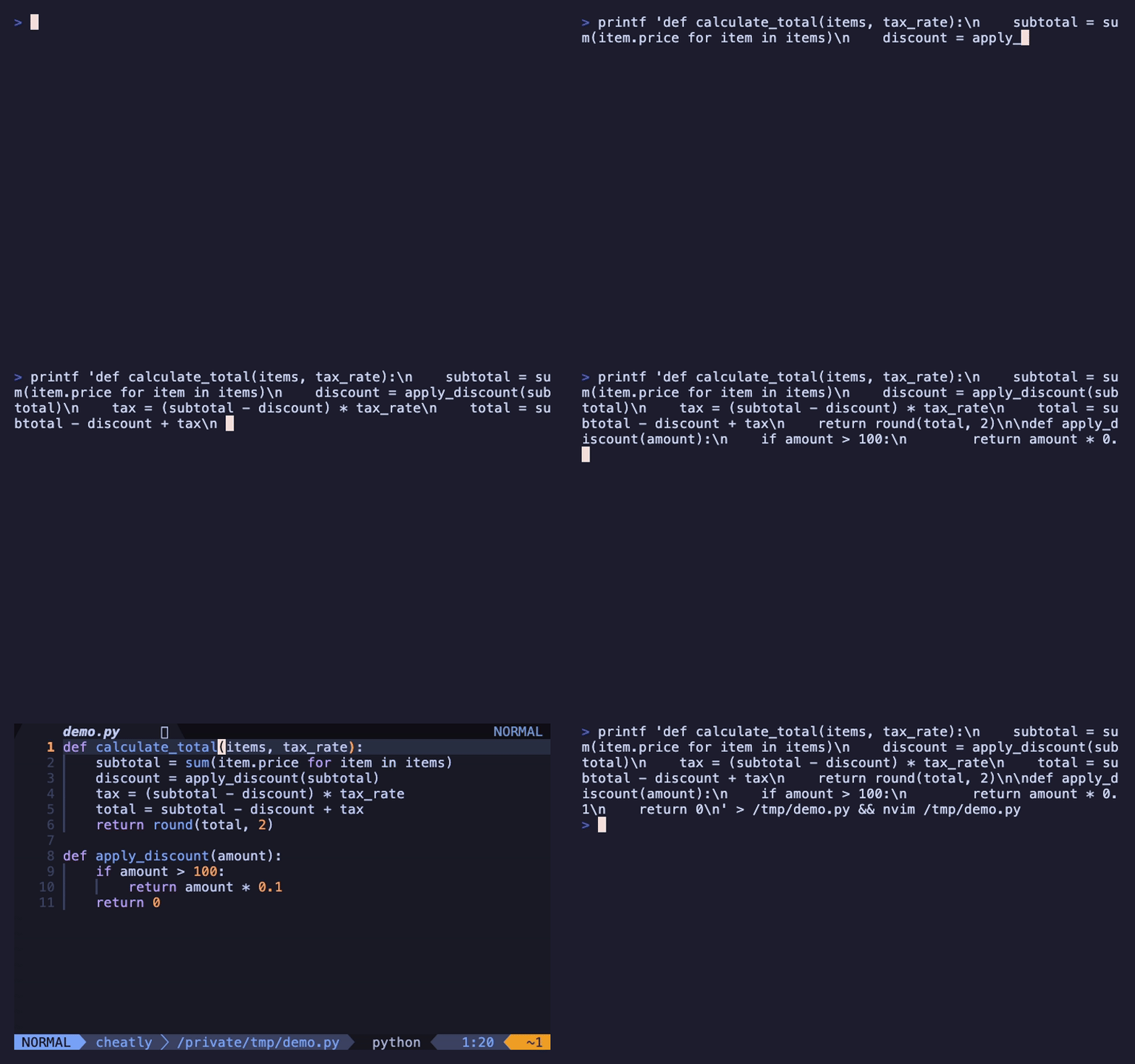
The first thing every Neovim tutorial tells you is to stop using the arrow keys. This sounds like gatekeeping, and honestly, it kind of is — at first. But there's a real reason behind it, and once you understand the system, you'll see why Neovim users move through code faster than anyone else.
The arrow keys work fine in Neovim. Nobody's going to take them away from you. The problem is that they're far from the home row, which means every time you reach for them, your hands leave the position where all the other useful keys live. It's a small interruption, but it happens hundreds of times per day. Neovim's motion system keeps your fingers where they are and gives you something far more powerful than moving one character at a time.
The basics: h, j, k, l
The four home-row keys replace the four arrow keys.
Why these specific keys? It's historical — Bill Joy designed the vi key bindings on an ADM-3A terminal where the arrow symbols were literally printed on these keys. That's it. No deeper philosophy. But the placement works: your right index finger rests on j, and the four keys fall naturally under your fingers.
Here's the important part: you should almost never hold down j to scroll through a file. If you're pressing j twenty times, you're doing it wrong. The whole point of Neovim's motion system is that there's almost always a faster way to get where you're going.
Word motions: the first upgrade
Moving by words instead of characters is where things start to feel different.
The lowercase versions treat punctuation as word boundaries — so user.name is three words (user, ., name). The uppercase versions only break on whitespace, treating user.name as one WORD. In practice, you'll use the lowercase versions most of the time and reach for uppercase when you're jumping through paths or URLs.
3w jumps forward three words. 5j moves down five lines. This works with almost every motion in Neovim — learn it early and it pays dividends everywhere.Line motions: getting to the right spot
Once you're on the right line, you need to get to the right column.
The f and t motions are underrated. Say you're looking at const result = calculateTotal(items, tax) and your cursor is at the start. f( jumps straight to the opening parenthesis. t) jumps to just before the closing one. These are surgical — you tell Neovim exactly where you want to go.
After an f or t jump, press ; to repeat it forward or , to go backward. This is perfect when there are multiple matches on the line.
Moving through the file
For bigger jumps — moving through functions, scrolling through files — Neovim has motions that cover more ground.
Ctrl-d and Ctrl-u will become your main scrolling mechanism. They move half a screen at a time, which is enough to scan through code quickly while still keeping your bearings. The paragraph jumps ({ and }) are fantastic for code because blank lines typically separate logical blocks — functions, classes, paragraphs of comments.
% is quietly one of the most useful motions in any language. Place your cursor on an opening brace and press % to jump to the matching closing brace. Works with parentheses, brackets, and most paired delimiters. Great for navigating nested code.
The composable grammar
Here's where the entire system comes together and the "why" of motions becomes clear. Neovim has a grammar: operator + motion. Operators are things like delete (d), change (c), and yank/copy (y). Motions are everything we just covered. Combine them and you get precise editing commands without touching a mouse.
dw— delete from cursor to the next wordd$— delete from cursor to the end of the lineci"— change everything inside the quotesyap— yank (copy) the entire paragraphdt)— delete everything up to (but not including) the closing parenthesisgUw— uppercase the next word
You don't memorize these combinations. You learn the operators (there are only a handful) and you already know the motions. The combinations emerge naturally. This is why Neovim users are fast — not because they've memorized more shortcuts, but because they've learned a small vocabulary that combines into thousands of precise commands.
A practical learning path
Don't try to learn all of this at once. Here's an order that works:
- Week one: Use
h,j,k,lexclusively. Disable your arrow keys if you have the discipline (:noremap <Up> <Nop>and friends). It'll be painful for two days. - Week two: Add word motions (
w,b,e) and line motions (0,$). You'll immediately feel faster. - Week three: Start using
f/tfor in-line jumps andCtrl-d/Ctrl-ufor scrolling. This is the tipping point where it starts to feel natural. - Week four: Combine motions with operators (
dw,ci",yf,). This is when the system clicks and you understand why people get obsessed with Vim.
The key insight: each new motion you learn doesn't just give you one new command. It multiplies with every operator you already know. That's the compounding return that makes the investment worth it.
For a complete reference, check our Neovim motions page or the full Neovim cheatsheet. The official Neovim documentation covers every motion in detail, and running :Tutor inside Neovim gives you an interactive tutorial that's genuinely well-made. Start there if you haven't already.